Hello, everyone!
I am going to share with you a quick implementation we made in Puppet Manor in order to have the camera wobble effect. Of course, you will be able to make a lot of tweaking and make it even better once we finish but I think it is a nice start or a nice implementation for a game jam game.
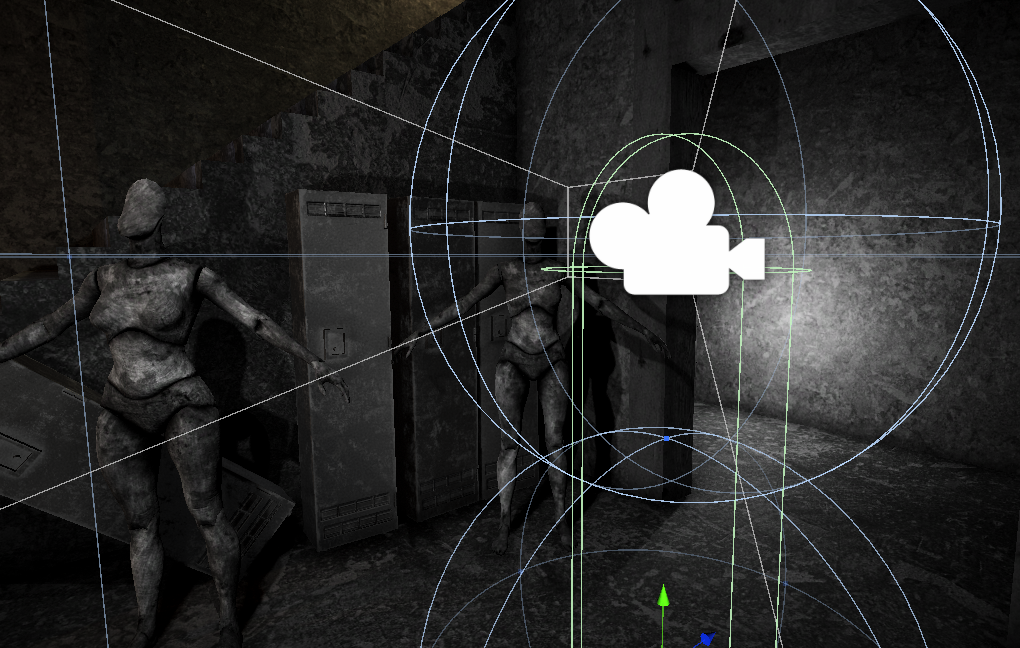
In case you didn’t know, the camera wobble effect is the movement the camera does up and down when a character is walking, for example.
So let’s start!
Parameters we will need
First of all, let’s see what parameters we will be needing and why:
public private AnimationCurve wobblingCurve;
public private float wobblingSpeed;
public private float curveAmplitude;
public float returnToIdleSpeed;

private Vector3 _centerLocalPosition;
private float _wobblingIndex;- wobblingCurve – We are going to use this one to set how we want the head to move. I will show you later wich value we will add to it to have a decent animation but you will be able to tweak it to your needs.
- wobblingSpeed – How fast we want the character to move through the animation. We will be able to add a multiplier in case we want, for example, the character running instead of walking.
- curveAmplitude – How high and down we want the head to wobble.
- _centerLocalPosition – We will save this to have a reference of what is the center we expect. You can think of this like the pivot of the animation.
- _wobblingIndex – We will use this one to know in wich position of the animation we are currently.
Saving the start position in the Awake
The first quick, only and easy thing we are going to put in the awake is just a line to store the initial position of the camera.
private void Awake()
{
    _centerLocalPosition = transform.localPosition;
}
That should do the trick. Notice we are saving the localPosition and not the position because we are going to move the camera relative to its container (we don’t want to get disturbed by the global position).
Check a strategy in the Late Update
Then we are going to select how we want the camera to behave depending on the state. In this example, we are going to check if the player is pressing a key, in which case we will decide it is walking and move in like it was walking. And in case it isn’t pressing the key, go to the idle movement.
private void LateUpdate()
{
    if(Input.GetAxis("Vertical") != 0)
        Walking();
    else
        Staying();
}
As you can see, we are using the Input.GetAxis to know if the player is pressing to move forward. Apart from this, we are using the LateUpdate as it is recommended for cameras. You want the camera to update last depending on the diverse input you could have. In this case, it won’t make too much difference but if we add extra conditions, it is a good idea to have this in the LateUpdate function.
Walking movement
In this function, we will make sure the animation moves through the animation curve and sets the camera position.
private void Walking()
{
    _wobblingIndex += Time.deltaTime * wobblingSpeed;
    while (_wobblingIndex > 1)
        _wobblingIndex -= 1;
    transform.localPosition = Vector3.Lerp(
        transform.localPosition,
        GetPositionFor(_wobblingIndex),
        Time.deltaTime * wobblingSpeed);
}
Now here are a few things we are doing:
- First we udpate the index of the animation curve based on the delta time and the wobbling speed we created before.
- In case we go past the 1 value, we make sure to lower it by one. This shouldn’t be neccesary unless the player had a huge dropdown on fps.
- And lastly, we lerp the localPosition from it’s current position to the position it should have. Here, I am also using the wobblingSpeed but you can add another parameter and make it more personalizable.
But let’s see how we get the position for that index:
private Vector3 GetPositionFor(float wobblingIndex)
{
    return new Vector3(
        transform.localPosition.x,
        _centerLocalPosition.y + wobblingCurve.Evaluate(wobblingIndex) * curveAmplitude,
        transform.localPosition.z);
}
As you can see, we don’t change the x or z position in local, we just modify the y position. And the y position is set by two values:
- The center local position we saved in the awake
- + we evaluate the wobblingCurve with the index and that you multiply it by the curve amplitude so the head will go up and down more or less based on that value.
Idle movement
The idle movement will be called when we want to player to go back to an idle pose. It won’t make a movement more than returning to idle point in this case but you could modify it and make something similar to the walking movement. Anyway, let’s see the code!
private void Staying()
{
    _wobblingIndex = 0;
    transform.localPosition =
        Vector3.Lerp(
            transform.localPosition,
            _centerLocalPosition,
            Time.deltaTime * returnToIdleSpeed);
}
This time is a really simple one. We will be reseting the wobbling index and then just lerping to the initial position so next time the animation starts we have it from the beginning.
Setting up the Animation Curve parameter
This will depend a lot on what you want to achieve but, if you are not sure yet, I show you a setting that will work almost for everything if you aren’t too picky.
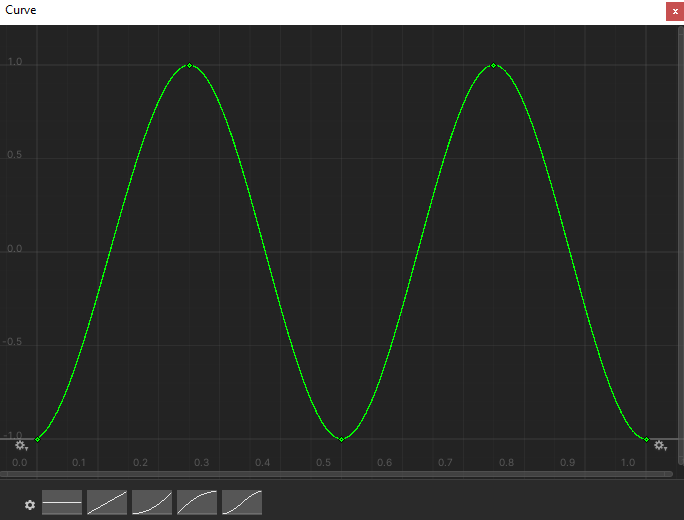
This is the one we used on Puppet Manor and in my opinion worked out pretty well. Remember you can click on the points to adjust it to your needs using the float input instead of just moving it around and try to fit it.
Final notes
If you set up everything and added the component to the camera, you should be having something pretty decent working already. Feel free to play with it and try out different approaches of what I already show to you.
Also, if you have any questions don’t hesitate on leaving a comment and I will try to help you.
Thank you for reading!
2 Reply to “How to make a camera wobble effect”